
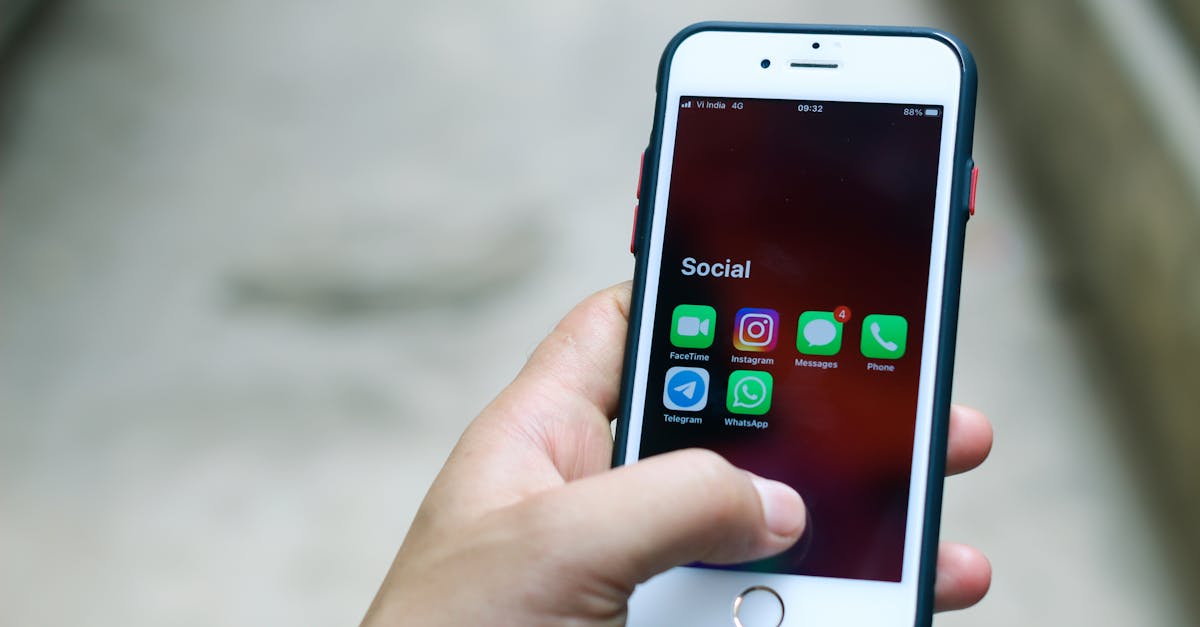
We’ve all been there—your iPhone’s message app looks like a chaotic treasure chest overflowing with unread messages. It’s like a digital game of hide-and-seek, and those pesky notifications just won’t quit. If your phone’s screen is starting to resemble a horror movie, it’s time to take action.
Table of Contents
ToggleOverview Of Unread Messages On iPhone
Unread messages on an iPhone can clutter the message app, leading to frustration. Managing these messages effectively reduces distractions and ensures important communications remain visible.
Importance Of Managing Unread Messages
Managing unread messages enhances productivity. It prevents vital notifications from getting lost among unaddressed texts. Streamlining conversations helps maintain organization while improving response rates. Ignoring this aspect may result in missed opportunities. Proactively deleting unread messages contributes to a cleaner inbox and a more manageable communication flow.
Common Scenarios For Deleting Unread Messages
Users frequently encounter scenarios where deleting unread messages becomes necessary. Situations include an influx of spam texts and promotional alerts that clutter the inbox. Accidental openings of promotional messages can also lead to a backlog of unread notifications. Group chats, often filled with constant updates, pose additional challenges. Identifying and removing these unwanted messages simplifies the overall messaging experience, making it easier for users to prioritize meaningful interactions.
Methods To Delete Unread Messages
Managing unread messages on an iPhone can make communication more efficient. Several methods exist to tackle this issue effectively.
Using The Messages App
Open the Messages app to view unread texts. Tap on the conversation with unread messages. Swipe left on the specific message for quick options. Select “Delete” to remove it immediately. To delete multiple messages, tap “Edit” in the top right corner, then mark the messages to remove. After selecting, tap “Delete” in the bottom right corner. Utilize this method to keep the inbox organized and focused.
Bulk Deletion From The Inbox
Bulk deletion simplifies message management. Access the Messages app and choose “Edit” in the top left corner. Mark all unwanted conversations with unread notifications. Tap “Delete” to remove them in one action. This method expedites the cleanup process, especially for spam or promotional texts. Maintaining a clutter-free inbox provides a more streamlined messaging experience.
Alternative Solutions
Alternative solutions exist for deleting unread messages on iPhone beyond standard methods. Exploring these options can enhance message management and streamline communication.
Third-Party Apps
Third-party apps often provide additional features for managing messages. Applications like Cleanfox and Unroll.me allow users to unsubscribe from unwanted email notifications and texts. Users can find visual organization tools that categorize conversations by importance and relevance. Features such as bulk message deletion offer convenience to those inundated with unread messages. By using these apps, individuals can maintain a clearer messaging interface.
Utilizing Settings For Message Management
Adjusting settings can improve message management on iPhone. Users can enable settings to filter unknown senders, which prevents spam messages from appearing alongside important communications. Adjusting notifications limits distractions and keeps unread messages at a manageable level. Automatic delete options for older messages also aid in maintaining an organized inbox. Customizing message settings significantly enhances overall message handling efficiency.
Tips For Preventing Unread Message Accumulation
Unread messages can pile up quickly, creating unnecessary clutter. Effective management of notifications helps keep the inbox organized and reduces distractions.
Organizing Message Notifications
Adjusting notification settings can significantly reduce message overload. Users can prioritize alerts from essential contacts while silencing notifications from less critical sources. Customizing settings for each conversation provides full control. Group chats may require different settings compared to one-on-one messaging. Users can also create custom ringtones for important contacts, ensuring vital messages get noticed promptly. Marking conversations as “favorites” can further streamline access to important threads.
Regular Maintenance Strategies
Implementing regular maintenance practices keeps unread messages in check. Users should allocate a few minutes daily to review incoming messages and delete any unnecessary ones. Deleting promotional messages as soon as they appear prevents accumulation. Utilizing the “delete all” feature for old conversations can also clear out clutter. Setting reminders for weekly organization sessions encourages consistency. Regularly archiving less important conversations naturally lowers the unread message count and becomes a more manageable task.
Deleting unread messages on an iPhone doesn’t have to be a daunting task. By employing the methods outlined in this article users can regain control over their messaging app and enhance their communication experience. Regularly managing unread messages not only declutters the inbox but also ensures that important notifications are easily accessible.
Incorporating third-party apps and adjusting notification settings can further streamline the process. With these strategies in place users can maintain a more organized and efficient messaging environment. Ultimately staying proactive about message management leads to a more enjoyable and productive use of their iPhone.